
Programming Stewy
Here is a guide on how to install, setup, and use the software for uploading code to Stewy.
Download Code From GitHub
- Go to Stewy's GitHub Repo here
- Click the Code dropdown and select "Download Zip"
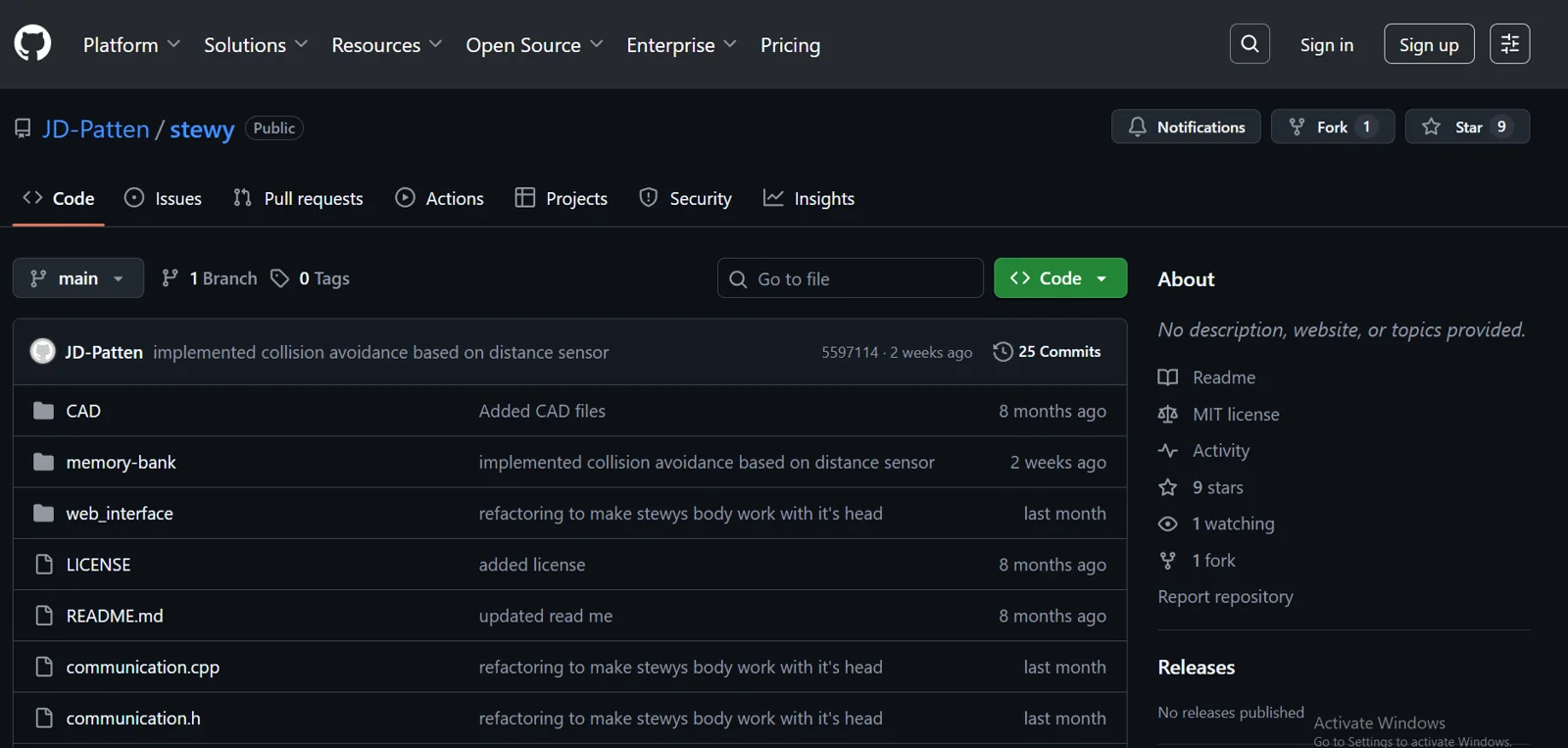
- Find the downloaded file in File Explorer
- Extract the zip file to the place you want to store it
Download the Arduino IDE
- Go to the Arduino website here
- Scroll down until you find the download button for Arduino IDE
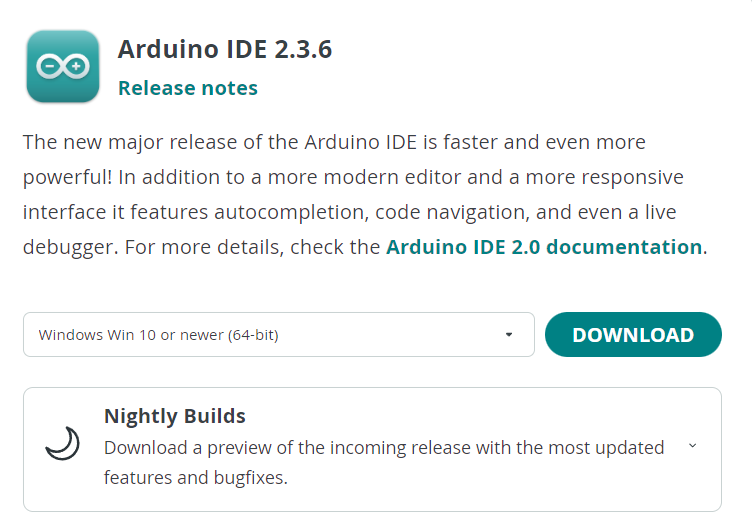
- Select the version in the dropdown that works with your computer
- Click the download button
- Once the download has finished, run the installer
Setup IDE for Stewy's Base
- Open the Arduino IDE
- In Arduino IDE go to File > Open, find the folder that you extracted and open Stewy.ino
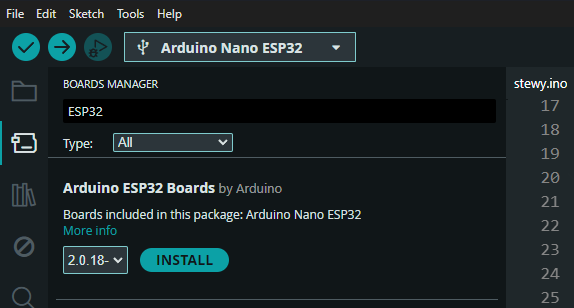
- Open the Boards Manager by going to Tools > Board > Board Manager
- In the Board Manager search "ESP32" and install Arduino ESP32 by Arduino
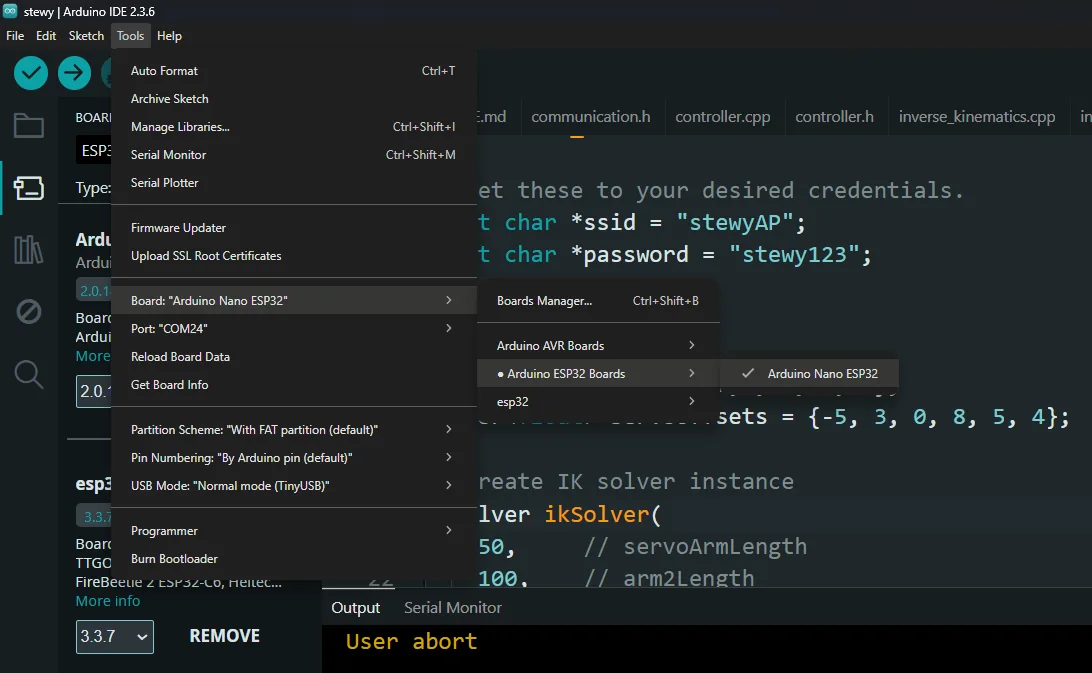
- Select the correct board by selecting Tools > Board: > Arduino ESP32 Boards > Arduino Nano ESP32
Upload Code to Stewy's Base
- Go to Tools > Port and select the serial port that appears when you plug in the base microcontroller (Nano ESP32 S3) to your computer
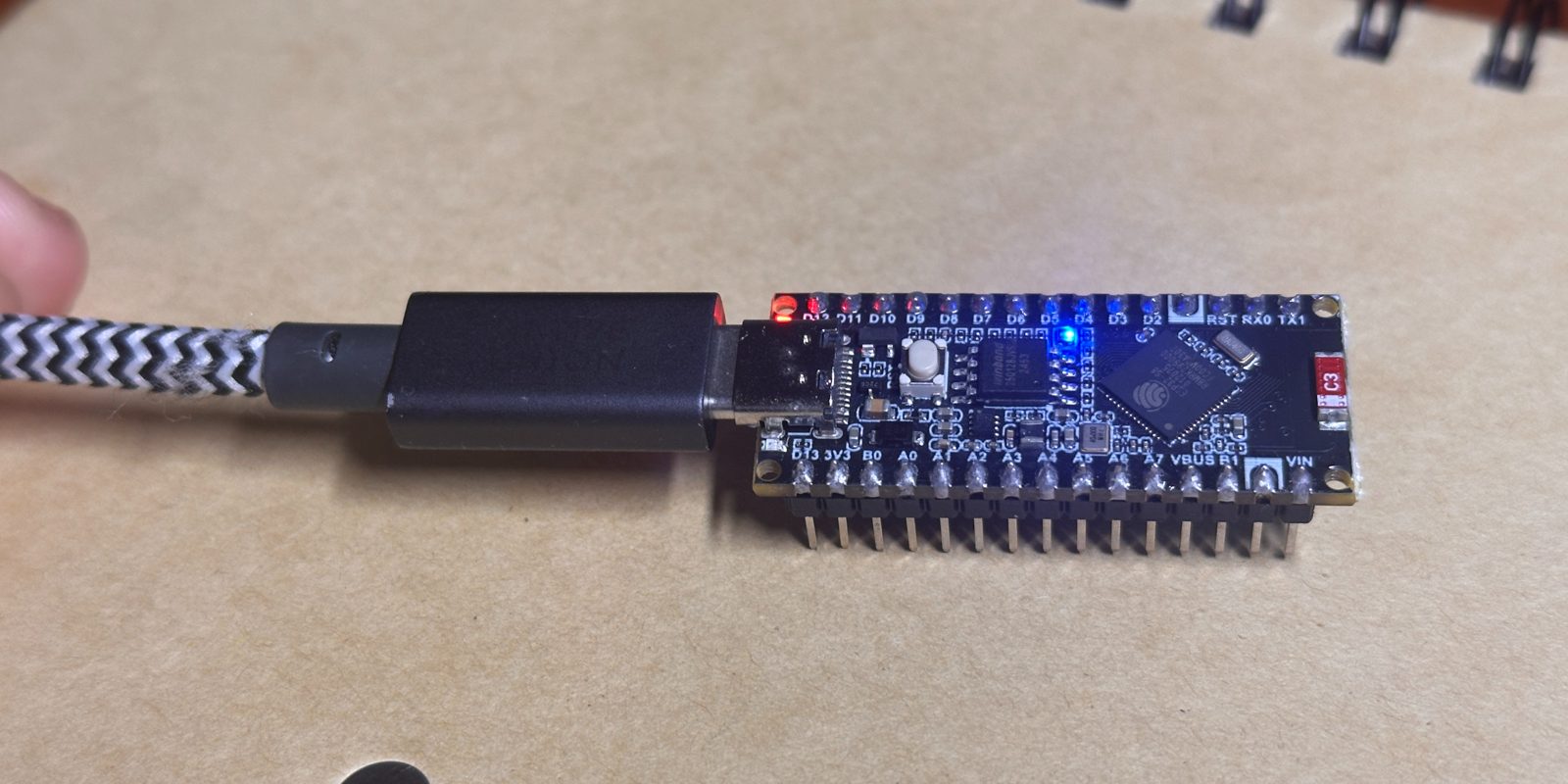
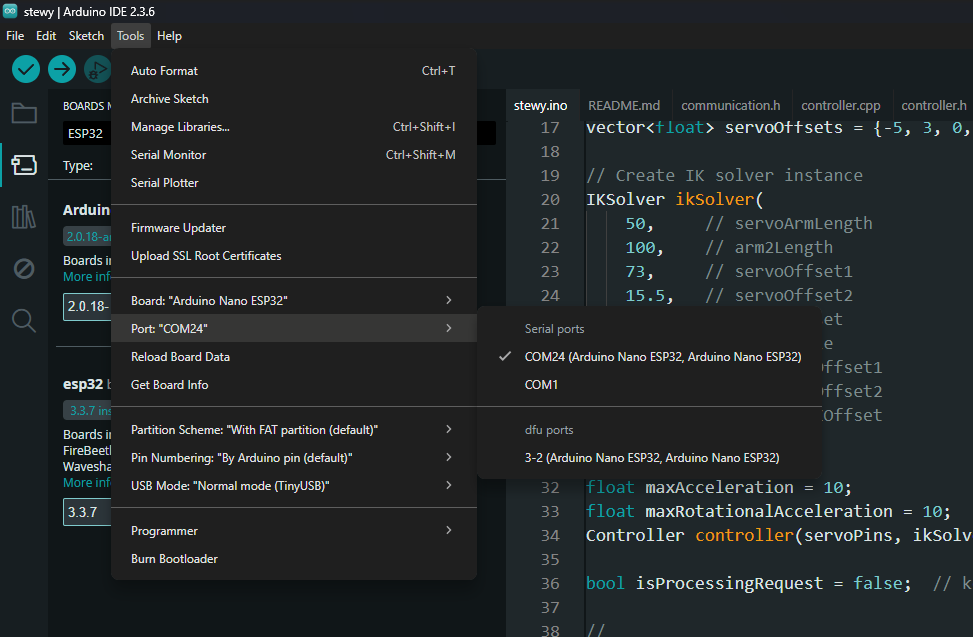
- Click the upload arrow in the top left corner to upload the code stewy.ino to your base microcontroller.
Setup IDE for Stewy's Head
- Open the Arduino IDE
- In Arduino IDE go to File > Open, find the folder that you extracted into, and open head > head.ino
- Open the Boards Manager by going to Tools > Board > Board Manager
- In the Board Manager search "esp32" and install esp32 by Espressif Systems
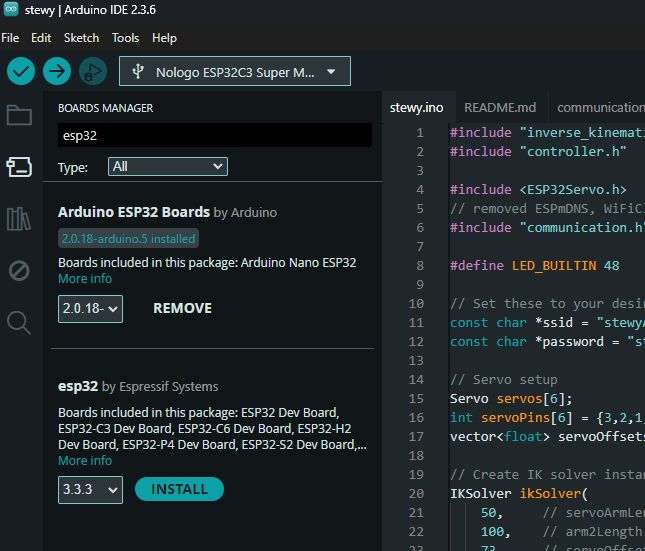
- Select the correct board by selecting Tools > Board: > esp32 > Nologo ESP32C3 Super Mini.
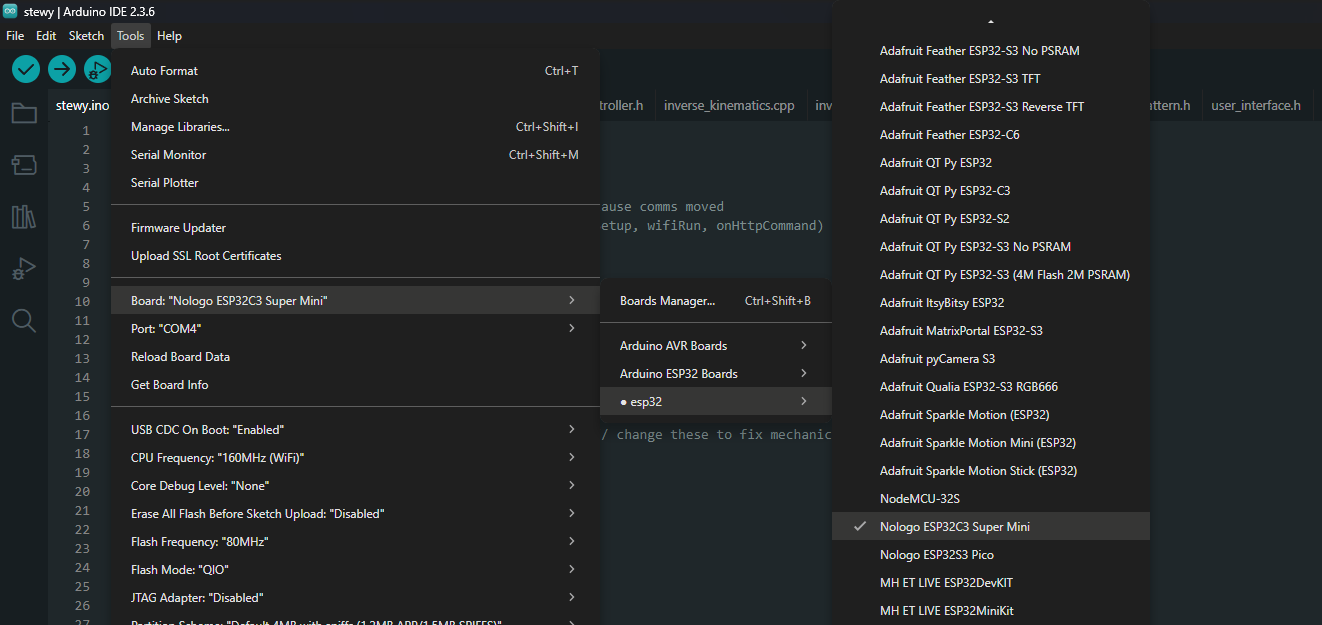
Upload Code to Stewy's Head
- Go to Tools > Port and select the serial port that appears when you plug in the head microcontroller (ESP32 Super Mini) to your computer
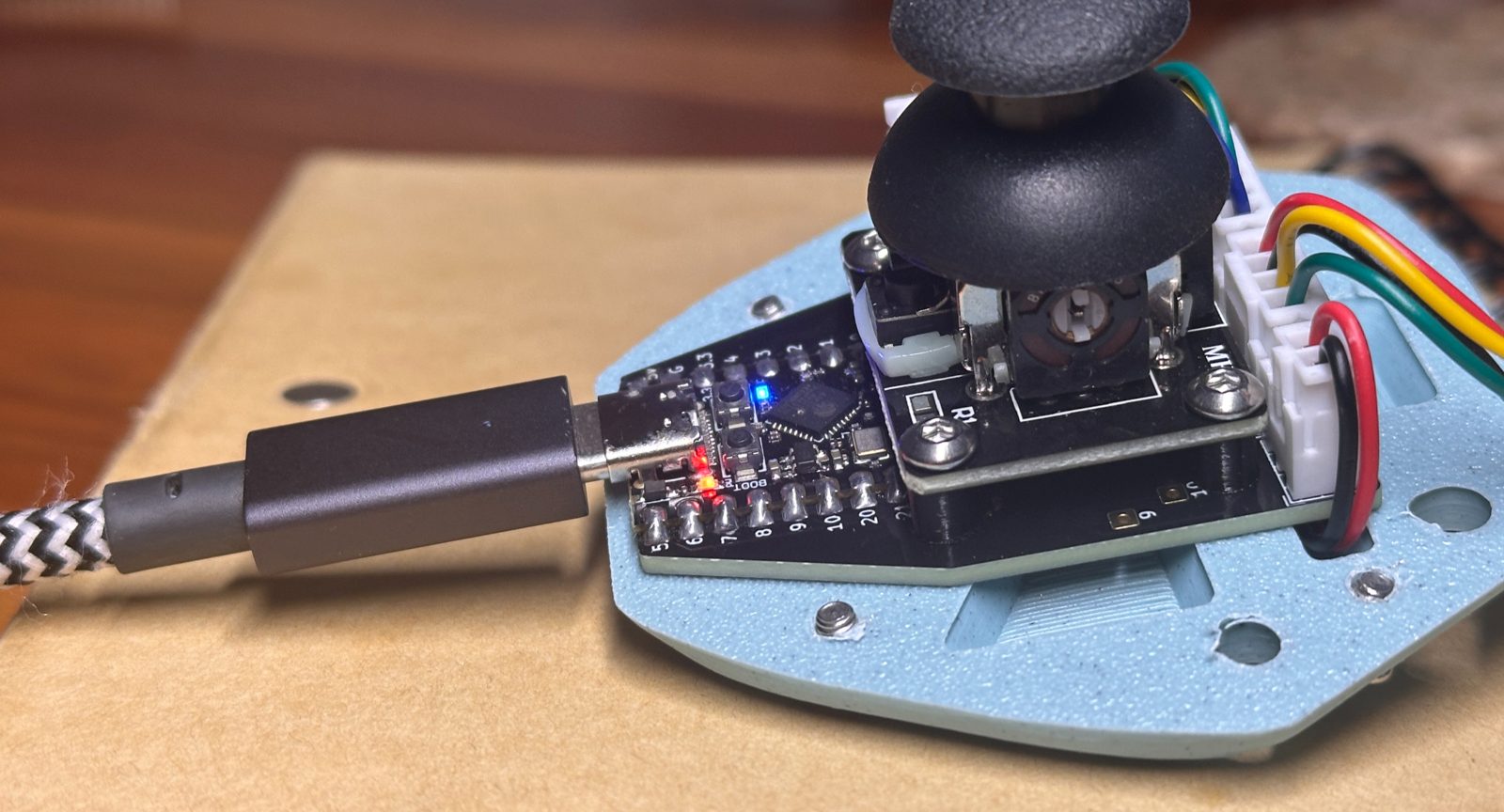
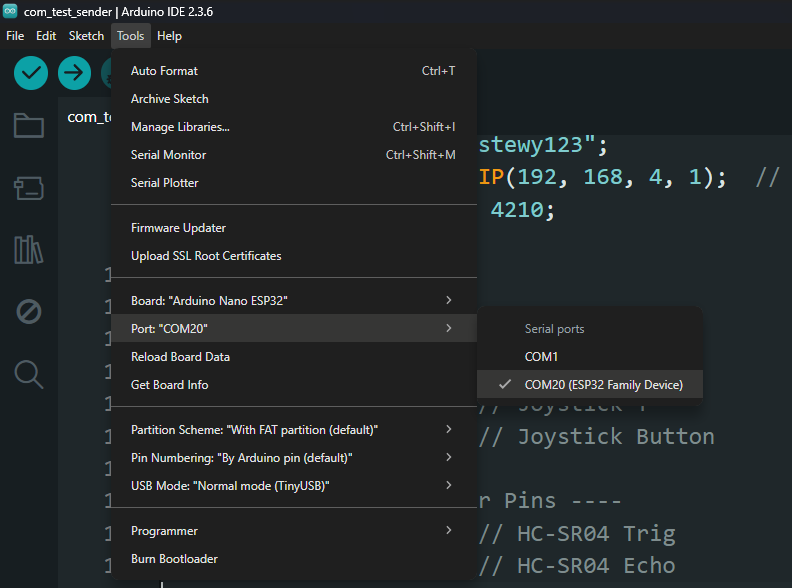
- Click the upload arrow in the top left corner to upload the code stewy.ino to your base microcontroller.
Troubleshooting
- Try a different USB cable (some are power-only, no data)
- Check for loose connections
- Double check that you have the correct board selected
- Double check that the COM Port you have selected goes away when you unplug your board
- If you still have problems, send me a message with the contact form explaining what is happening, and I will try my best to help. Please include as much info as you can including: what board you are trying to upload to if the com port goes away when you unplug how far along in the process you are able to get. any error message when you upload the color of the lights on your board and if they are flashing
- what board you are trying to upload to
- if the com port goes away when you unplug
- how far along in the process you are able to get.
- any error message when you upload
- the color of the lights on your board and if they are flashing